
Managing Tables and Fields
You're in complete control of the tables and fields, and the relationships between them, in your database.
If you need a refresher on what tables and fields are, please see the Database 101 Tutorial.
You can create new tables, add fields of various types to each table, and create relations between tables, such as relating Parts to Products, or Line Items to Invoices, or Children to Parents. For more detailed info and suggestions on deciding what tables and fields you need, see the Table Structure tutorial.
Tables and fields are managed in the Table and Field Setup page, which you'll find under the Database Setup topic on the Admin tab:
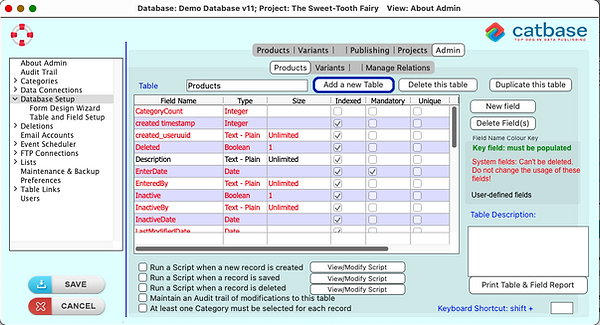
In this example (from the Sweet Tooth Fairy project in our Demo Database), two tables have been set up: Products and Variants. This is a common setup for things like parts catalogs and product catalogs, where each Product can have multiple parts (variations, options, etc.)
If you click on the Manage Relations tab, you can see the relationship between the two tables:

Double-click on the red connecting arrow to inseoct the relation:

This shows us that:
-
Each Product can have multiple Variants (it's a Many-to-One relationship)
-
Each Variant is related to ONE Product
-
Each Variant MUST be related to a Product: when you are adding Variants, you must select its parent Product or you will not be able to save the new record. The easiest way to manage this is to first open the Product record, then right-click in the list of Variants and choose Add a new Variant (your database might have different table names!). This way, the correct parent record will be selected automatically for the new "child".
Click Save or Cancel to close the window.
About the Fields
Click one of the Talbe name tabs to go back to the list of fields. For example:

Field details are shown in one of three colours:
-
Red: These are the system fields. They are the same in every data table, and they cannot be deleted.
-
Green: The key field for the table. There is always ONE key field, and it is mandatory - it must be populated in every record. This is the main identifier for a record, such as the company name, stock code, or (as in the example shown here) Product Name.
-
Black: These are your user-defined fields. You can manage these as needed for your project: add, modify, and delete.
Each field can have various attributes specified. See the Field Properties Tutorial for detailed info about fields.
Creating a new Table
To create a new table, click the Add a New Table button. You'll be asked for the name of your new table, and the name for the Key field, and then the new table will be created with its default set of fields.
Modifying a table
You can:
-
Change a table's name
-
Add, edit, and delete fields
-
Choose various options for managing the table (see below)
-
Manage the relationships between tables
Deleting a table
If you no longer need a table, you can delete it by selecting it and then clicking the Delete this Table button.
All data in the table will be immediately deleted!
Managing Fields
Adding Fields to a Table
To add a new field, click the New Field button. The Field Properties dialog opens, where you can:
-
Select the field type
-
Name the field
-
Select various options such as whether the field should be mandatory, indexed, included in Quick Search, and other options. For full details, see the Field Properties tutorial.
Editing a Field's Properties
If you need to change a field's name or any of its properties, simply double-click it in the list of fields to open the field Properties Dialog.
Deleting Fields
To delete one or more fields, select them in the field list, then click the Delete Field(s) button. (To select more than on field, hold down the Ctrl or Cmd key as you click on each one).
Before allowing a field to be deleted, CatBase will check to make that it isn't being used anywhere such as in an Import Style or a Publishing Style. If it is, you will be alerted, and the field will not be deleted.
Table Options
For each table you can select a few options:

-
Run a script when a new record is created: Execute a script when you create a new record in this table.
-
Run a script when a record is saved: Execute a script whenever a new or modified record is saveed.
-
Run a script when a record is deleted: Execute a script when a record is deleted (note: only when the record is actually deleted, bot when it is marked for deletion).
-
At least one Category must be selected for each record: If this option is selected, you won't be able to save a new or modified record unless a Category has been selected.
Scripts
We have a few free scripts, which you can find on our Downloads page.
We can also create custom scripts for any purpose. For more info on this service, see the Custom Scripts page.
Edit the Data Entry form for the table!
Once you have created a table and/or edited its fields, you can modify the data entry page for that table. You can:
-
Add fields to the page
-
Delete fields from the page
-
Reposition and resize fields
-
Specify a "tab" order for the fields and objects on the form
See the Form Design Wizard tutorial for details!